On the configuration side:
Not really. They are user docs, but they are more of a reference guide to what all of the configuration items are, rather than a tutorial. And, I agree, there’s a lack of good tutorial information available for Pulseaudio, Pipewire, Wireplumber, etc.
The knowledge I have, which is far from complete, has been gained by messing around with Pulseaudio and Pipewire a lot over the last 10 years. I also explored wireplumber because, like you, I assumed it was what I needed.
My rough description of these (which may not be 100% accurate) is that Pulseaudio (or the Pulseaudio API, using pipewire-pulse) manages the connections. WirePlumber manages the policy. The two work together.
So, for example, if you plug in a Bluetooth headset, WirePlumber instructs Pulseaudio about the new device, and instructs Pulseaudio to switch the default audio device to the headset device.
All the audio connections to desktops apps is via Pulseaudio (or Pulse API via pipewire-pulse).
If you want to change the policy of your desktop system, such as not having it switch to a different audio device when it’s plugged in, then you need to mess with WirePlumber configs.
If you want to configure connections (as I did) then you need Pulseaudio which, as I said, on a Pipewire system is managed via pipewire-pulse, and configured using scripts in ~/.config/pipewire/pipewire-pulse.conf.d.
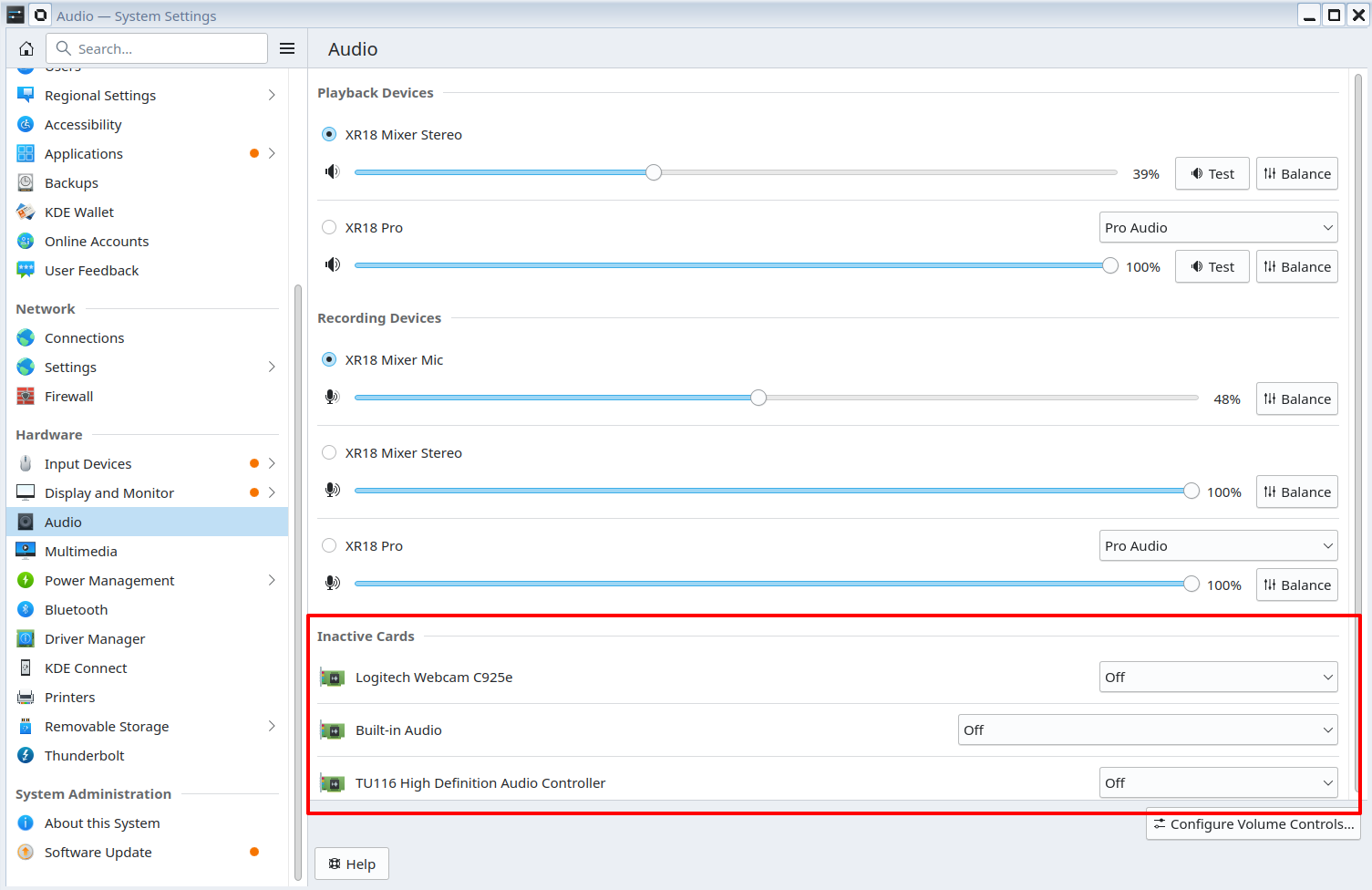
If you want to disable or otherwise configure individual audio devices, just use KDE System Settings.
The Pipewire documents are quite technical, because Pipewire (and PulseAudio) are complex and powerful systems, and are aimed at a technical audience. And, because of the compatibility, Pipewire inherits some of the architecture & terminology (e.g. “sources” and “sinks”), although the configuration language is different.
As a brief starter, you have the following objects:
Devices
These represent physical hardware devices, audio interfaces.
Nodes
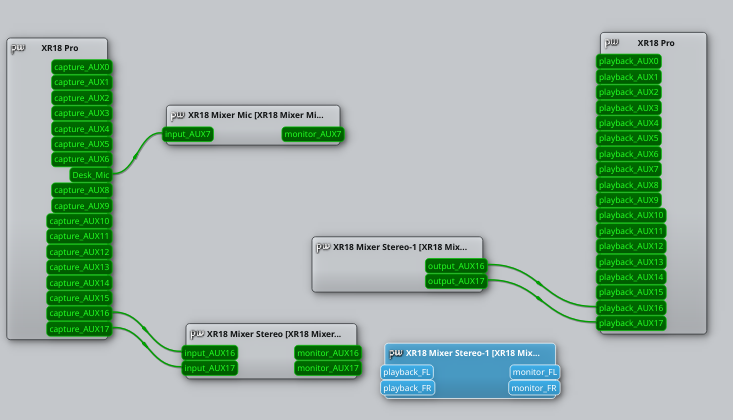
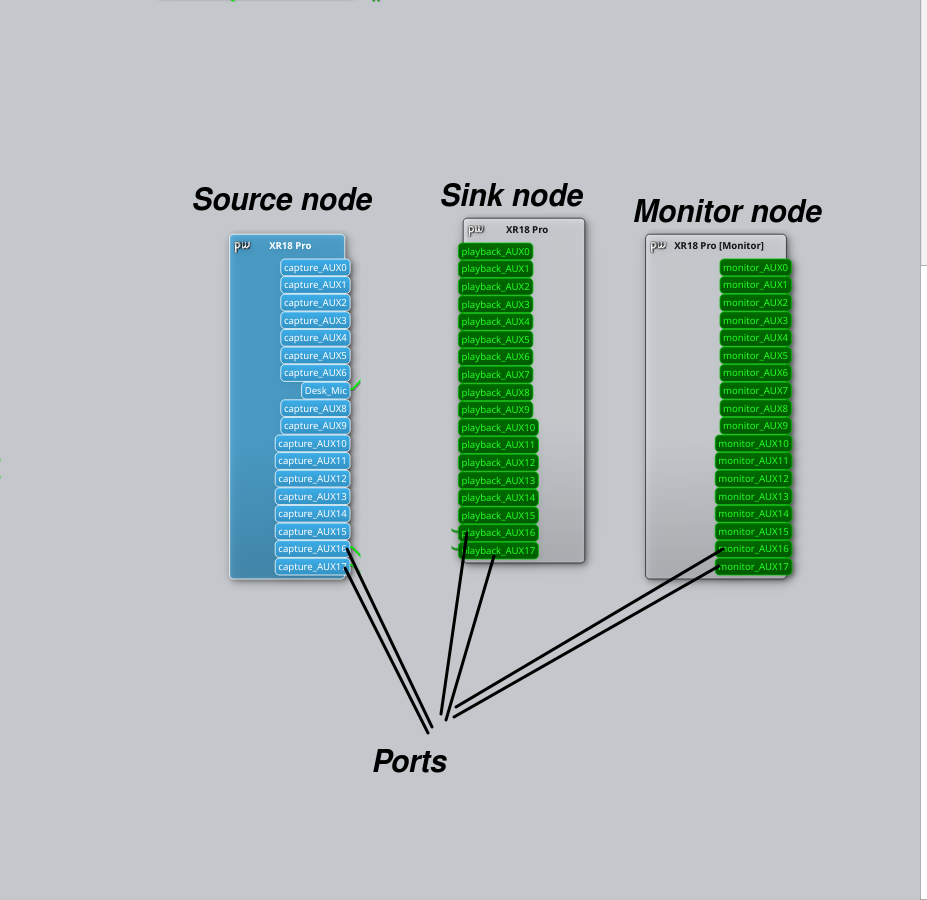
A “node” is an object that produces, consumes, or processes audio data. Devices will, typically, have multiple nodes. For example, a typical audio interface will have a “Capture” node and a “Playback” node. You will also probably have a “Monitor” node which, as I understand it, is a bit of a legacy thing.
Sources and Sinks
These are, more generally in Pipewire, called"Outputs" and “Inputs”, but the PulseAudio terminology has been inherited in a lot of cases for compatibility with desktop apps. These are types of nodes which indicate their purpose/capability.
Ports
Ports are the individual capture, playback, or monitor endpoints and these, typically, correspond to the physical input and output ports on your audio interface.
The above are quite well visualised within qpwgraph or similar connection managers:
Streams
Streams are types of nodes which are created by applications. These may be dynamically created, such as when you launch a YouTube video on your browser, it will create a stream node for that, which will have a pair of output ports.
Where WirePlumber comes in, is there’s a policy in WirePlumber which, when a stream node is created with output ports, it will detect the change and instruct Pulseaudio to connect that to the default device.
Modules
These are “feature addons” to Pipewire which create additional functionality, including Jack and PulseAudio compatibility.
There are various modules (listed here) which do different things. Generally, they will create new nodes.
In my configuration example I used loopback module to create virtual nodes which act as a stereo source/sink which connects to specific ports on my XR18 mixer. You can use loopback to do things like remapping of channels.
In the part of the configuration I show below, I describe the stereo sink/output virtual device. This will create a pair of virtual nodes which appear in qpwgraph as follows:
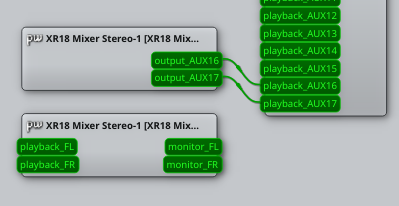
These are actually internally linked, so the “playback_FL” is connected to the “output_AUX16” (and the same for the FR). The “monitor_FL” is the legacy quirk of PulseAudio, as I mentioned before. Personally, I would prefer it would go away or could be suppressed, and I would prefer it if qpwgraph automatically joined these nodes together. But you can’t have everything:
    # Creates a virtual sink for X-Air XR18 playback on channels 17/18
   {   name = libpipewire-module-loopback
       args = {
           # What I want to call the node. this will appear in other apps, like qpwgraph
           node.description = "XR18 Mixer Stereo"

           # What the node looks like. This is an audio sink (output) node
           # It has two output ports labelled "playback_FL" and "playback_FR".
           # Note these names are significant and have meaning in the Linux world as they
           # define the channel mapping behaviour.
           #
           capture.props = {
               media.class = "Audio/Sink"
               audio.position = [ FL FR ]
           }

           # The linked playback node which connects to my XR18 ports
           # This defines the connection to my device (node.target)
           #  as well as the channels on that device to connect to (audio.position)
           # There's also some technical flags which affect behaviour which are
           # out of scope for this overview
           playback.props = {
               node.name = "playback.XR18_stereo"
               audio.position = [ AUX16 AUX17 ]
               node.target = "alsa_output.usb-BEHRINGER_XR18_4C5BB32DFB73_03-00.pro-output-0"
               stream.dont-remix = true
               node.passive = true
           }
       }
   }
As I mentioned above, the channel names are significant. The different names represent different behaviours, and are listed in spa_audio_channel.
That is a fairly simple example. I have messed with Wireplumber a bit, but not as much as with Pipewire.
I think what you need to configure really depends on what you are trying to do. Your previous explanations have been a bit vague, so it’s not really clear if it’s policy (WirePlumber) or connectivity (Pipewire-pulse) that you need to use.
Cheers,
Keith