It uses JACK video, which was a thing way back when and is still used for projects like LiVES - Wikipedia
That is very likely indeed.
It uses JACK video, which was a thing way back when and is still used for projects like LiVES - Wikipedia
That is very likely indeed.
Wow, that’s some very solid information and it already reads so much more applyable than the official docs. Thanks, this is really great value for me.
Here one usecase that maybe outlines a little bit better how I want my setup to behave.
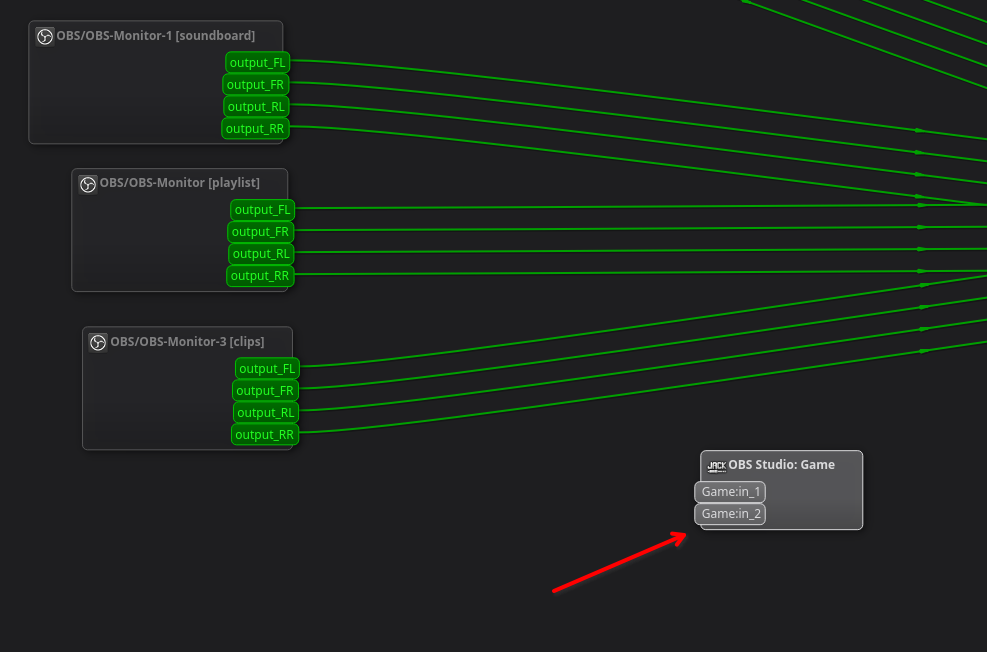
When streaming with OBS I want to have the sound of the game I’m playing in OBS, of course. Therefor I have, amongst others, a JACK Input Client source in my gaming scene.
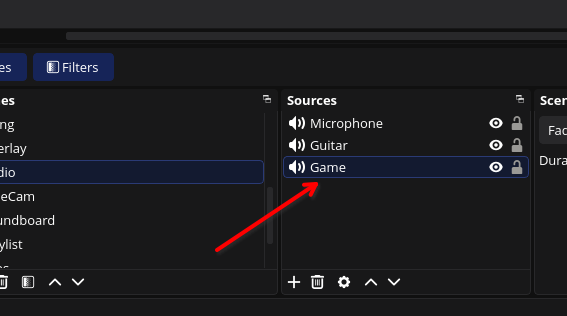
This creates a node in the Pipewire graph
Now I have to connect the games audio output to that input node. Since all games generate audio nodes with different node.names you can’t just hook it up once and it remembers it. You have to connect each game to that input node individually. Doing this manually is a nightmare. That’s how I did it in the past but it’s so combersome, that I don’t want to do it like that anymore.
I want to configure rules that instruct a node that comes up to connect to the output of my soundcard, so that I can hear it but also to the input of that JACK Input Client source, so that the stream hears the games audio.
That’s probably the easiest setup, with the setups for the Microphone or the Guitar being a little bit more complex but it illustrates the general idea, I guess.
The Microphone and Guitar setups involve third party applications with their inputs and outputs where the signal is supposed to be routed through, which makes the setups more complex but the general idea of setting up connections between specific nodes stays the same.
This might be a case where that “monitor” node is actually useful.
Your audio device should have a node (visible in qpwgraph) with “monitor_” outputs (e.g. “monitor_FL”, “monitor_FR”). Try connecting that to the OBS Studio input.
Note that, if this works, it will probably connect all of the sound that’s going out of your audio interface into OBS and that may not be what you want (I couldn’t quite work that out from your description). But if it is, this could be an easy solution.
Cheers,
Keith
That is explicitly incorrect.
The pipewire designer and lead developer has stated directly that he expects no applications except pipewire aware configuration tools to interact directly with the pipewire server API, and all audio use is through Pulse or JACK API.
It’s actually not what I want. In that case I could just use OBSs default “Desktop Audio” channel, which already recieves the entire system audio. I want to have dedicated channels for each source.
That’s also very solid information, thanks, I didn’t know that.
So up to this point I got to the understanding that pipewire-pulse is actually what I’m looking for, so I have been going through the docs once more, now with a more pulse centered mindset.
Things are clearing up bit by bit but there are still things that confuse me:
1. Dedicated purposes:
Majik said:
The docs however say:
A fully configured PipeWire setup runs various pieces, each with their configuration options and files:
- pipewire: The PipeWire main daemon that runs and coordinates the processing.
- pipewire-pulse: The PipeWire PulseAudio replacement server. It also configures the properties of the PulseAudio clients connecting to it.
- wireplumber: Most configuration of devices is performed by the session manager. It typically loads ALSA and other devices and configures the profiles, port volumes and more. The session manager also configures new clients and links them to the targets, as configured in the session manager policy.
- PipeWire clients: Each native PipeWire client also loads a configuration file. Emulated JACK client also have separate configuration.
If I take the docs by its word it would read as “pipewire-pulse is only there to configure properties while wireplumber handles connecting things together”
I will go by Majiks explaination, since it seems to be more productive but do you see where my confusion is coming from?
2. What to actually use?:
Majik said:
The docs say:
context.modules
Array of dictionaries. Each entry in the array is a dictionary with the name of the module to load, including optional args and flags. Most modules support being loaded multiple times.context.objects
Array of dictionaries. Each entry in the array is a dictionary containing the factory to create an object from and optional extra arguments specific to that factory.
In my head this roughly translates to, if this was Python, this would be something like
import MyModuleToLoad # <- context.modules "feature addons"

new_node = new MyModuleToLoad() # <- context.objects
In the details of context.objects the docs even say
CONTEXT OBJECTS
The context.objects section allows you to make some objects from factories (usually created by loading modules in context.modules).…
This section can be used to make nodes or links between nodes.
How did you arrive at the conclusion to create nodes and link them with context.modules?
Sorry for the wall of text and hairsplitting but this is confusing.
First of all, don’t take what wrote as gospel. This is based on my understanding of the system. It may be incomplete or wrong.
I suspected as much, but thought I would offer that option just in case.
It’s probably my fault for being unclear.
Let me try to clarify:
by instructing Pipewire to create new nodes and ports for those devices.
by instructing Pipewire to create connections between the new nodes/ports and existing nodes/ports based on its policy.
If you look at the example I gave, this should match:
So this is an example where WirePlumber is managing the policy and using that policy to instruct Pipewire to create nodes and wire them up.
At the end of the day, both WirePlumber and PipeWire are involved, but the nodes, ports, and connections are fundamentally contained within, and managed by PipeWire. WirePlumber is just a client of PipeWire that hooks into udev to provide automatic creation of devices and connections.
Put it another way: you can completely remove WirePlumber from your system and replace it with something else if you wanted to. In fact, in the past, Pipewire used a tool called “Pipewire Session Manager” that did the device creation and connection management instead of WirePlumber.
When WirePlumber came along, it was generally felt to be a be a better tool, so they swapped it out.
To be clear, I am NOT recommending removing WirePlumber, it’s just an illustration show where the roles sit.
Consider, also that, because WirePlumber is just a client to Pipewire, you can control Pipewire with other external clients as well, including scripts…
Honestly, I think you are digging too much into the weeds here.
Basically, Pipewire has a bunch of ways to configure (and create) nodes and ports and to wire them up. One of those ways is using configuration files.
Within the Pipewire configuration language is the ability to load a module which does something specific. One of those modules is “libpipewire-module-loopback” which is what I use in my example. By specifying this module in the configuration file, it loads the module and applies the specific module configuration within the configuration block to that module.
If you want to look at it in programming terms, it’s a bit like loading a class, and then calling its constructor with a bunch of parameters.
My thoughts on what to use
The problem you have is that, whilst WirePlumber might seem (nominally) to be the right tool to use, you have a fairly specific requirement (make this connection) but it’s based on a very broad premise “when a game is run”.
The tricky (and, maybe insurmountable) issue is how to specify that as a policy WirePlumber can understand. Maybe if all the games had a unique string in their node name that isn’t present in any other node, it could be done.
One option may be to configure a WirePlumber policy which wires every software app with audio to the OBS Node, and then manually deal with the ones you don’t need connected.
I’m sorry, but I can’t help with this, as my knowledge of configuring WirePlumber policies is sketchy; once I found out it wasn’t what I needed for my requirements I stopped exploring it.
Another approach, using just Pipewire, could be as follows:
With this setup, every audio application that launches should connect to the “OBS input” device by default and, because this is connected to your audio interface, you should be able to hear it. This is similar to my loopback use above.
You can then connect OBS to the Monitor port of “OBS Input” which will then have the audio for every application connected to that node.
Unless you can find a programmatic way to differentiate between applications you want connected this way and ones you don’t then you will have to manually remove any apps which you don’t want connected.
Note that you can have this as a permanent setup via Pipewire config files, OR you can have it as a bash script that you run which creates the nodes and connections, and switches the default audio device.
Personally I would look at scripting this as it gives you more flexibility, especially as it then gives you the option to not set the OBS node as default, and to make the connections only for known applications. It also means it’s not going to mess anything up when you aren’t using it. You will, of course, need to maintain the application list.
Something like this:
#!/bin/bash

# --- CONFIGURATION ---
SINK_NAME="OBS_Virtual_Bus"
SINK_DESC="OBS Silent Mirror Bus"
# List apps you want to mirror (must match the 'node.name' in PipeWire)
APPS_TO_MIRROR=("firefox" "google-chrome" "vlc" "spotify")

# 1. CREATE THE VIRTUAL SINK
# Using module-null-sink, as we don't need to connect it to an audio device
# object.linger=1 ensures it stays alive even if the script finishes.
echo "Creating $SINK_DESC..."
pactl load-module module-null-sink \
    sink_name=$SINK_NAME \
    device.description="$SINK_DESC" \
    object.linger=1

# 2. START THE MONITORING LOOP
echo "Monitoring for apps: ${APPS_TO_MIRROR[*]}..."

# Subscribe to 'sink-input' events (when an app starts playing)
pactl subscribe | while read -r EVENT; do
    if echo "$EVENT" | grep -q "new' on sink-input"; then

        # Small delay to let the app fully register its ports in the graph
        sleep 0.2

        # Get the node name of the newest playback stream
        NEW_APP=$(pw-dump | jq -r '.[] | select(.info.props["media.class"] == "Stream/Output/Audio") | .info.props["node.name"]' | tail -n 1)

        # Check if the new app matches our target list
        for TARGET in "${APPS_TO_MIRROR[@]}"; do
            if [[ "$NEW_APP" == *"$TARGET"* ]]; then
                echo ">>> Mirroring $NEW_APP to $SINK_NAME"

                # Create the additional links
                # We don't use -d (disconnect), so the original link to your Audio interface remains
                pw-link "$NEW_APP:output_FL" "$SINK_NAME:playback_FL" 2>/dev/null
                pw-link "$NEW_APP:output_FR" "$SINK_NAME:playback_FR" 2>/dev/null
            fi
        done
    fi
done
I’ve not tested this, so it may need some work. But the idea is, if you open a terminal window and run this when you want to do this sort of streaming, and then it should manage the connections for you. It may be possible to launch this automatically when you run OBS by changing the OBS startup, but I’ll leave that for you to consider.
Cheers,
Keith
I don’t know if it fits the topic, you can also make connections with pw-link.
pw-link -o → shows output nodes
pw-link -i → shows input nodes
For example, I have a script that I use to connect Reaper to certain inputs/outputs.
#!/bin/sh

pw-link alsa_input.pci-0000_00_1b.0.analog-stereo:capture_FL REAPER:in1
pw-link alsa_input.pci-0000_00_1b.0.analog-stereo:capture_FR REAPER:in2
pw-link REAPER:out1 Parametric-EQ-Input:playback_FL
pw-link REAPER:out2 Parametric-EQ-Input:playback_FR
Probably, but as an outsider (just a regular user trying to setup his audiosystem), how do I know how much digging is appropriate and how much is too much? Which leads full circle to my intial premise, as a developer (or pipewire advanced person) you know what all that means, written in the docs and you know how to interpret it. As someone who is “just a user”, not so much. 
I wouldn’t consider my requirement so specific.
On its first line, the Pipewire docs descripe Pipewire as:
PipeWire is low-level multimedia framework that provides:
- Graph based processing.
…
When it’s graph based, where I connect nodes amongst each other, I think it’s fair to assume that this can be configured, to make certain connections persistent. When it’s possible that the system detects applications and automatically have them connect to the alsa card, then I personally would not say it’s overly far fetched to assume that the system can be configured to automatically connect to other nodes as well.
That’s actually the least concern I have in all this. I could either use match rules that use a list of applications to include by their node.name or I could work subtractivly and just exclude all the apps I don’t want to connect. match rules allow to invert the selection with “!” so I could set up a match rule that says "Connect to OBS: Game when you are NOT Vivaldi, NOT vlc, NOT mpv, NOT Tidal, NOT Ardour, etc.
Either way, that’s not what I’m concerned about.
Figuring out, for example, the syntax how to connect 2 ports with each other, that’s difficult for me.
It’s not as simple as:
# pseudocode

rule {
    matches [
         { node.name = "ELDEN RING" }
    ]
    actions [
        { "connect", "FL", "alsa_card: output1" }
        { "connect", "FR", "alsa_card: output2" }
        { "connect", "FL", "OBS: Game:in1" }
        { "connect", "FR", "OBS: Game:in2" }
    ]
}
Actually, I don’t know. Maybe there is a “connect” action but after days of searching the docs up and down I havn’t found useful information about what possible actions there are.
Searching the Pipewire docs for “actions” brings up no results
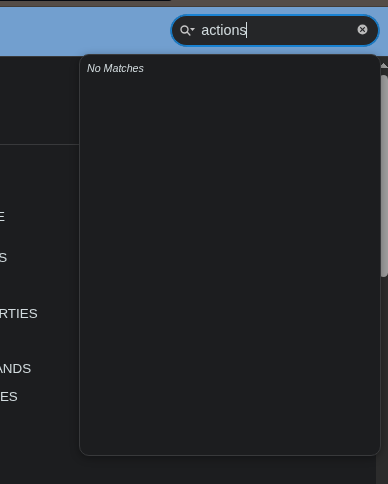
The only vague information I get is
MATCH RULES
Some configuration file sections contain match rules. This makes it possible to perform some action when an object (usually a node or stream) is created/updated that matches certain properties.…
The actions key is always a JSON object, where each key-value pair defines an action that is performed when the rule is evaluated as true. The action name is specific to the rule and is defined by the rule’s documentation, but most frequently you will see the update-props action, which is used to update the properties of the matched object.
As a non Pipewire dev, how am I supposed to know what actions are available when all I get is " most frequently you will see the update-props action". Yeah, but what if not? What if I don’t want to update properties but establish connections instead?
The docs state the action available is “defined by the rule’s documenation”. So, since I want to connect specific ports, let’s see what I can find in the documention of the port rules.
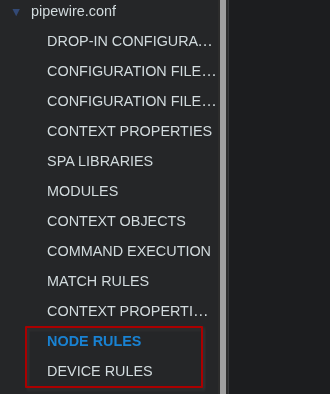
Well, port rules don’t exist.
Ok, my next best bet is “Maybe it’s part of the node rules then”
The NODE RULES documentation says:
NODE RULES
The node.rules are evaluated every time the properties on a node are set or updated. This can be used on the server side to override client set properties on arbitrary nodes.
node.rulesprovides anupdate-propsaction that takes an object with properties that are updated on the node object.
So I assume that this is the only action that is available for node rules.
Then you google search “Pipewire how to configure connections”, “Pipewire automatically connect nodes”, etc which unfortunatelly also doesn’t bring up much more then references to the docs, which didn’t help me in the first place.
Pipewire is so often described as “so powerful”, “the new improved audio multiplexing engine”, “pipewire solves many problems we had with pulse and jack”, all these claims and yet I’m too stupid to simply configure a connection of output A to input B.
The rule to match audio streams of the games doesn’t has to be perfect. If occasionally one ore two apps slip through, I won’t die. I just want to setup a general configuration that handles most cases. And for the other rules to route let’s say the Guitar input client in OBS is even simpler, because I have static names for these.
As I said, I think you are digging too much into the weeds (or, maybe to mix metaphors, the guts).
I honestly think that WirePlumber, despite it’s capabilities seeming like a match, is the wrong tool for you.
I think this based on coming from a similar position from where you were.
Yes, WirePlumber documentation is rather “developer focused” but that’s because it’s aimed at developers, not end users. It’s aimed at Distro developers, primarily. It’s aimed at providing a nice out-of-the-box default experience. And, for desktop users, the primary uses cases it supports are around new devices appearing and disappearing.
They don’t have end-user documentation because, IMO, WirePlumber is not a tool they expect end-users to engage with. Because, if the WirePlumber and Distro developers have got things right, it should “just work” for all of the common use-cases it aims to support.
A specific streaming use-case like your is NOT what WirePlumber aims to support. That’s not to say it couldn’t, do it, with a lot of work but, for desktop environments, that sort of use-case is better handled in other ways.
And I think the best way to handle this is to use Pipewire, which does have a fair amount of user documentation. I’ve given you a relatively complete script which can be used, and @Axel99092 has responded similarly.
If you want to take on getting WirePlumber to do this as an exercise in learning WirePlumber, then go for it, but then I suspect you’ll be on your own. If you choose to climb Mt Everest, don’t complain when it turns out to be hard.
Otherwise, I think the best approach is to use Pipewire commands in scripts. These are documented fairly well.
https://docs.pipewire.org/page_programs.html
And there’s a fair number of examples of how to use them, including in posts above.
As indicated, pw-link is your friend here. But pw-dump and pw-dot may be useful in your journey.
Cheers,
Keith
Ok, I feel that this conversation is taking an uncomfortable turn, which is probably just a miscommunication issue but I don’t want this to end nasty.
So I will close this conversation by thanking you all for joining in, I really appreciate your time.
I got some very helpful insights out of this, some misconceptions cleared and I will take that to work out a solution for me.
I literally feel dumber after reading this conversation.  (kidding) Pipewire is so darn easy to use there is really very little reason to dig deep. Using qpwgraph (and even qjackctl if you need it) pretty much takes care of everything you could ever need, including jack connections. I do understand where you are coming from however. I was once there too, trying to dig deep and understand how to really take over control of it, until one day I realized I didn’t need to do that at all.
Making things to complicated is always more complicated. It’s best to take control of the user apps and learn how to connect those to where ever one needs. It works really well for the most part.
This topic was automatically closed 28 days after the last reply. New replies are no longer allowed.