I’ve got a casio ct s500 with two line out signals going in to my line in on my antix linux pc. I’ve got the mixer being displayed for the two channels. I’m playing the demo on my casio. I’ve looked at the ardour how to mix video on youtube but I still can’t get my fader or anything to make the signals which are showed by two vertical multicoloured stipes to get smaller and larger. I know this is such a basic question. I apologise in advance.
Maybe this will help
1 Like
I guess the strips show the input signal, not the output. You can set this by right-click on the strip.
The track meters show the signal level at the beginning of the signal chain, at the track input. That can be changed, but input is the most useful place to meter to make sure you don’t overload any plugins in the track.
You should see changes due to track fader settings in the master bus meter.
So I have two signals from my casio keyboard coming into my line in.
In the mixer bar I then left click on the button “in”. So that it goes yellow.
If I then go to the draw bar immediately left of my led level indictors then I push that up and down I can make the output strip in the master track move up and down.
that’s about as far as I’ve got.
If the input signal is too hot (clipping, red led at the top of meter is turning on) then turn down the output level on your Casio first (…trying not to open a black hole of what else you could check out/adjust, if these are your first steps  )
)
You also have the option to connect your casio via usb. That way your can play and record midi information with your casio’s keyboard, and change/edit the sound via virtual instrument plugins in Ardour (GM synth, Dexed, FluidSynth, and many other third party instruments …). Check the MIDI stuff out, it’s the most usable thing for any keyboard player (and wider).
Might be a good idea to read Ardour’s manual, especialy if it’s your first DAW, don’t you think ? I know it can be annoying and overwhelming…
Spare some time, it’s well worth it.
Check this out…especialy for Ardour’s MIDI, this is a perfect explanation:
1 Like
Thank you for replying to my comment. I used to test motherboards so I’ve a theory about the electronics that there is no variable resistor between the input (line in) and the first audio chip in the sequence. This would explain why they try and steer you into adjusting your (line in) level so you don’t flood the first audio chip.
On your second point. I’ve connected my casio ct s500 from the midi output to my pc running antix linux and ardour. And yes; I’ve recorded a midi track. At the moment I’m just exploring my options and I’m not really sure how much I want to go down the midi route and how much I’m just happy to record the audio from my (line out) on my casio.
On your third point; I was hoping to glean as much from youtube videos as trudging through a manual.
I will put the ardour midi masterclass in my watch later pile on youtube.
1 Like
When you say “two line out signals”, do you mean a left and right signal? The S500 appears to have a pair of line out jacks which are labelled “R” and “L/Mono”, so I’m guessing you mean from these, but just wanted to confirm.
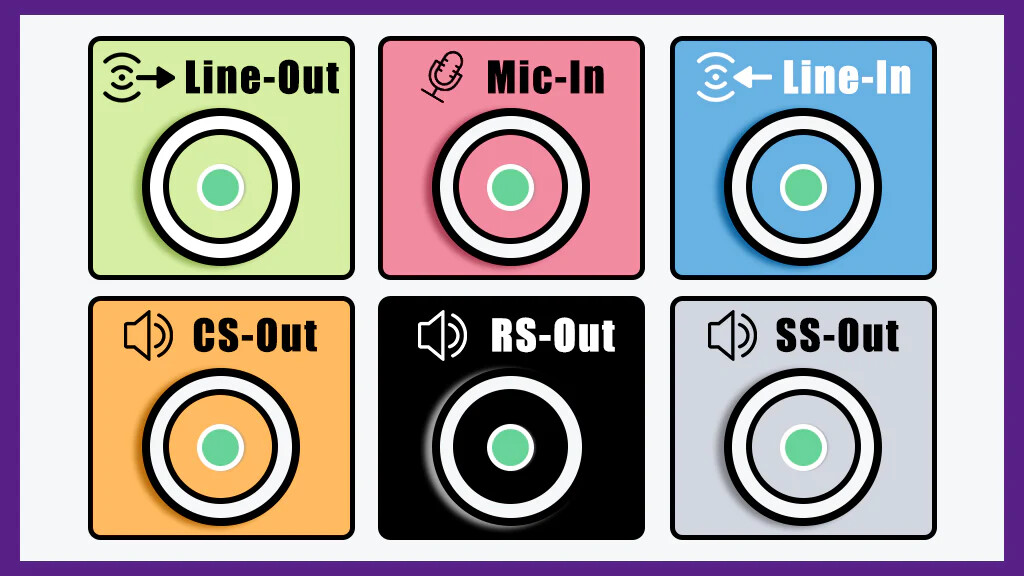
As you don’t mention a separate audio interface, I’m guessing here that it’s the line-in on the built-in audio on your PC. This is, usually, the blue stereo min-jack connector (as shown in the diagram below):
So, I’m guessing you have a cable with two mono jack plugs on one end and a stereo mini-jack on the other?
I’m not 100% sure what you mean by “the mixer” here. Are you talking about the desktop audio mixer, or one of the mixer views in Ardour?
By the way, you can paste screen shots into community posts, which can help when describing things.
If you mean for an input level control, it’s been a very long time since I have seen an on-board audio device with an analogue level control like that.
Modern (in last 2 decades) motherboard audio is almost always based on the Intel HDA standard. You can check this by opening a terminal and typing “aplay -l” and you should see something like this:
card 2: PCH [HDA Intel PCH], device 0: ALC1220 Analog [ALC1220 Analog]
Subdevices: 1/1
Subdevice #0: subdevice #0
card 2: PCH [HDA Intel PCH], device 1: ALC1220 Digital [ALC1220 Digital]
Subdevices: 1/1
Subdevice #0: subdevice #0
There are digitally controlled amplifiers in the HDA chipset which are used to programatically set the input level for the line-in connector. This can be controlled using the command line “alsamixer” application, as well as many others.
An important factor, on Linux, is what audio subsystem you are using with Ardour.
When you start Ardour and create a new session, it will normally ask you to select one, but you can change it at any time using the Window → Audio/MIDI Setup menu. You will get a window like this:
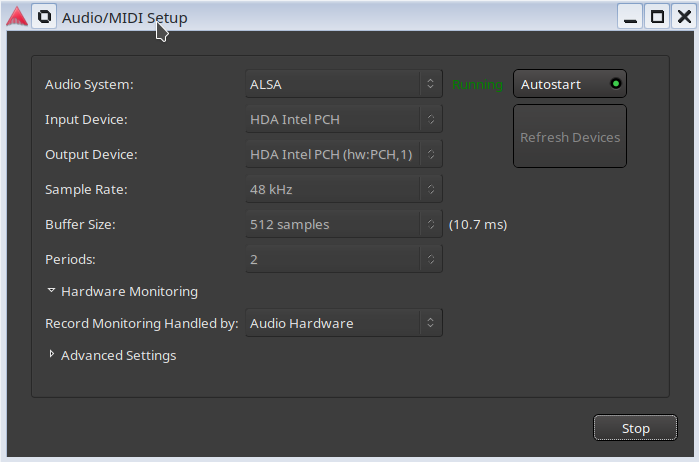
Here I have the ALSA sound system selected, and the HDA Intel on-board audio on my PC’s motherboard.
Without going into too much detail here, your best option is probably ALSA. But, be aware, that whilst Ardour is using your audio devices, it will stop all desktop audio from working. This is by design.
Also, your desktop volume/level controls won’t work. Normally, the levels going into the PC Line-in should be fine but, if they are not, then you may have to check the Casio to see if there is a way to control them. You could also try alsamixer or alsamixergui which may give you some control over the hardware inputs.
Note that, for this sort of work, most people will use an external audio interface which has a physical input gain control.
Cheers,
Keith
In your initial question. Yes, it’s the left and right line out signals from the casio ct s500.
Second question. There is a light blue connector on the back of my pc. Line in.
Yes, I have a cable I did a bit of soldering to. One three pin 1/8" plug over a 1 metre and a half cable to two separate 1/4" mono plugs going into the back of my casio ct s500.
I’m not that familiar with the audio circuitry on my gigabyte motherboard. Only boards from the 90’s which probably had a lot simpler audio interface.
I did the linux command you suggested aplay -l. It looks like the chip on my audio circuity is a realtek alc1220. I don’t know how the internals of the chip works exactly but it looks from the datasheet that you might well be able to control the level before the signal hits the “ADCs”.
Yes, I use ALSA. I watched a video on youtube saying the same thing that ardour using the ALSA standard takes over the pc sound system.
I didn’t know there was a program called alsamixergui. I’ll have to check it out.
I’m just a rookie when it comes to DAWs. I’m not going to fork out on one of those red boxes I see people using in youtube videos to take the audio to the USB on the computer. I’ll probably lose interest in a month or so. (Knowing me).
cheers back
Tim
Yes, same as mine. Intel HDA is a standard, Realtek ALC1220 is a chipset that implements that standard.
Yes, as I said, there’s usually digitally controlled amplifiers that set the input gain. You’ll need a control application to access these. For chipsets that meet the Intel HDA speci, these are supported on Linux by the “snd_hda” drivers. This will expose the controls via ALSA, hence you can use alsamixer, or alsamixergui, or Qasmixer.
Rather than alsamixergui, which is kind of old now, you may want to check out if Qasmixer is available for your distro:
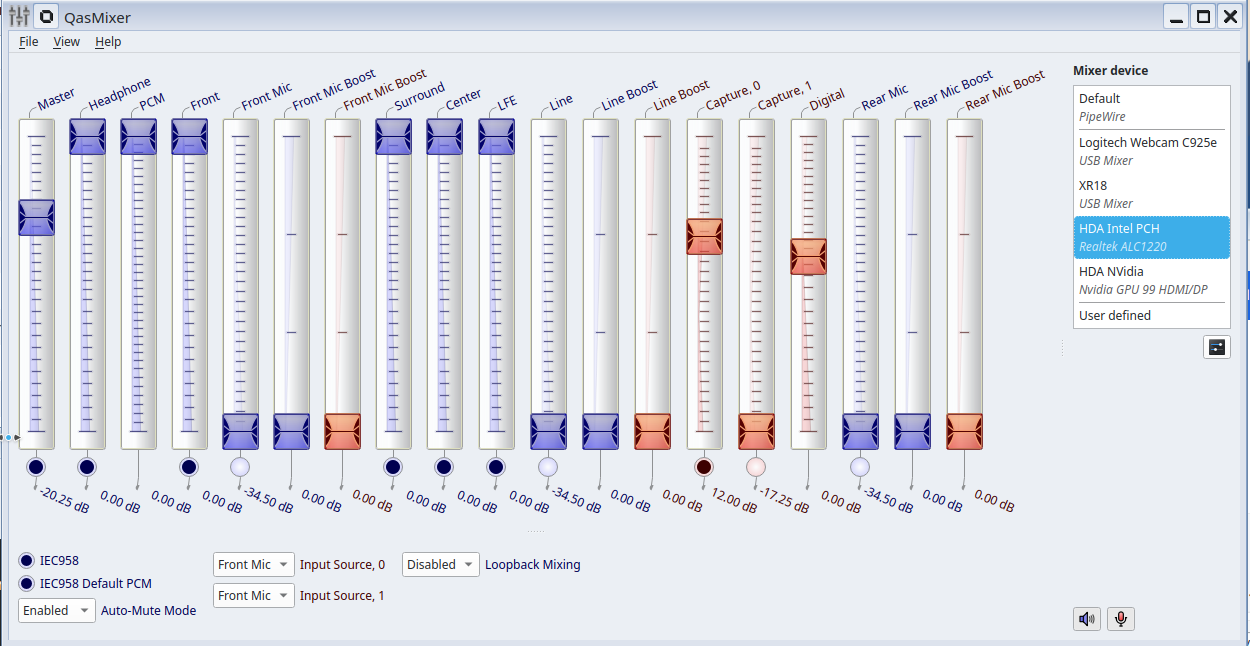
But you may not need this sort of control at all.
I would start with:
-
Run Ardour and create a new session
-
Make sure the Audio/MIDI is set to ALSA and your ALC1220
-
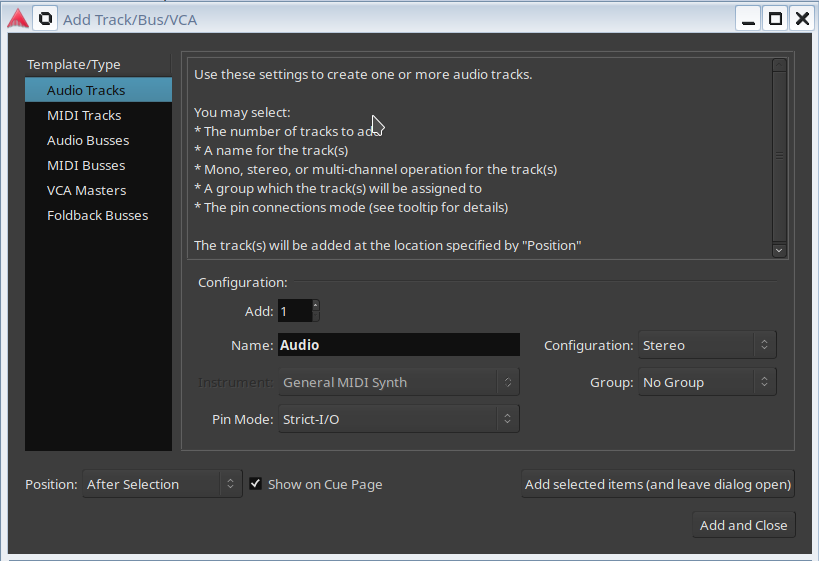
Create a Track (Track menu, “Add Track, Bus or VCA”) set it to audio, and make it a stereo track.
-
Check the inputs it will probably have mapped these to your audio inputs, but click on this to be sure. (If you don’t see this mixer strip, press SHIFT-E)
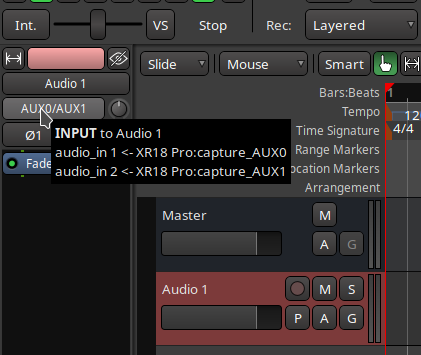
When you make some sound you should see the input meters on the track moving.
-
Record arm the track
-
Arm recording
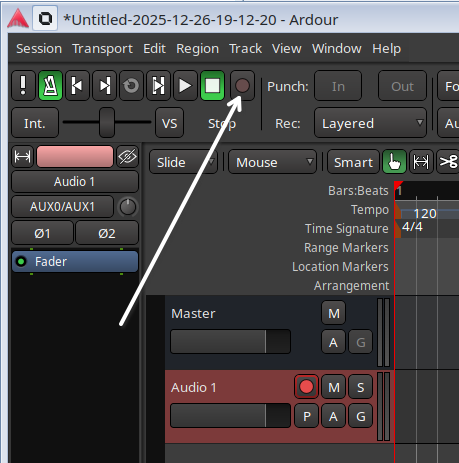
-
Start the transport, and make some noise!
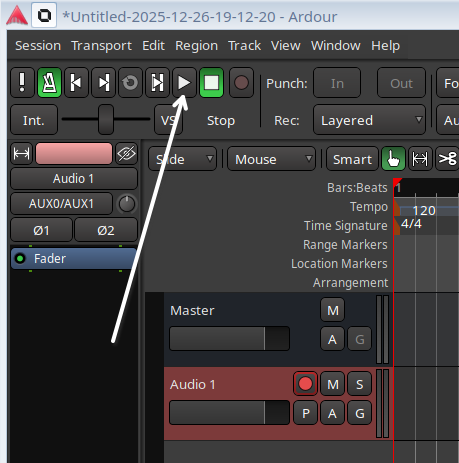
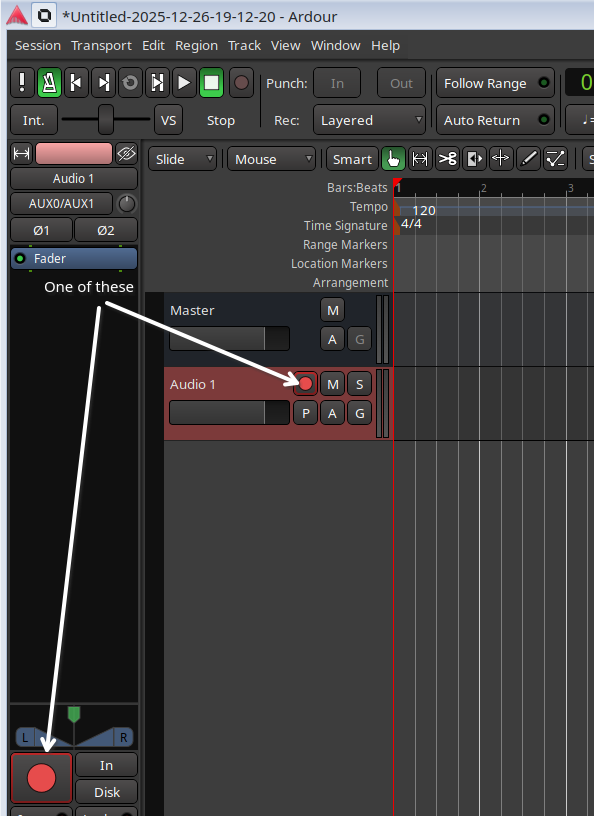
Cheers,
Keith
One of those red boxes aka Audio Interface are there for a couple of reasons. For keyboard players mainly to lower the latency as close to zero as posible, so you can hear what you are playing thru the computer and also at the same time the playback from the computer.
Basicaly, so you can sync your playing and playback.
Another thing those boxes do is preserve better quality of originaly played audio by adjusting input impedance and having better audio to digital converters (ADC).
I didn’t have 'em when i first started also, but, then again, i wasn’t trying to play and record the keyboard in real-time. That being said - you can playback audio or click(metronome) from the computer and monitor your playing direcly from Casio - that will work, no red boxes required.
My first sound card was a 15 bucks Sound Blaster and i didn’t even know it was kind of capable of near zero latency (by using Asio4All driver on Windows) - we’re talking about maybe 2001 - 2002.
Basicaly, they’re not necessary, if you don’t want to monitor your playing thru computer in real-time and also get the nice quality recording.
Recording of your Casio should sound normal, if levels are normal, because your Casio has a dedicated line out, and your sound card has a dedicated line-in. Only thing that can bother you is the latency stuff.
About loosing interest stuff. Don’t be so sure…this stuff is contagious . I never as a kid tought i’d end up doing sound. I started playing guitar in elementary school cause i liked the wittyness of punk-rock and the musical intricaties i heard in metal+classical guitar my older brother was practicing every day. In high-school i got my first real PC (P4). I clicked on an icon i saw on desktop on that machine that said Fruity Loops. No net, no info, nothing. First day i figured out it was a music program. By the end of the month i created a couple of ideas. By the end of second i created an album of electronic music i composed with mouseclicking every single note. A decade went by and i was recording bands i knew from town. Another decade and i was making a living doing mixing, mostly commercials, but also live gigs. If you asked me 20-something years ago what i was doing, i would say “I’m trying to record the distorted electric guitar signal that doesn’t sound like two skeletons are banging on a metal roof” .
1 Like
Thanks for your reply . Your musical journey sounds like it’s been an interesting one. Recording real bands; I often listen to the live feed of church services on a sunday morning on line. However they vary in quality so much. If you have good mixing skills then that’s something to behold.
1 Like
Yes, as always with live bands, they vary in every way possible.
If you are interested in mixing/production of live acts, there’s, in my opinion, only 2 realy important things…everything else is technicalities/theory and experience.
1.) Listening to as many recordings in different styles/genres, finding out which one you like the best, and then trying to get as close as possible to those references when creating your own mixes that have similar elements.
2.) Paying close attention to how musicians actualy play their instuments and how they sound while playing live, in a room, in front of you. (There’s no way i could explain, for example, what’s the amount of transients for a snare channel you have to preseve in a mix, if you never heard live drummer next to you and then compared that to recordings of similar style).
The rest is all technicalities…a lot of 'em, that’s for sure, but all technicalities.
Cheers
There are two live feeds I sometimes listen to. https://www.youtube.com/@TheC3Church
https://www.youtube.com/@Audaciouschurch . they leave a lot of other churches standing in the water when it comes to sound quality. Imho.
1 Like
I thought I’d try and find the plugin GM synth or Dexed. But I couldn’t find them. I suppose really I should try and watch the video on using midi. If I can get up enough steam.
I think that’s related to the way you installed Ardour. For example, if i install Ardour using Synaptic from standard Debian repositories, it comes with no GMSynth or Dexed. But, when i installed it using .run file downloaded directly from Arodur’s site, it comes with GM and Dexed…i think.
I think you can find those plugins here:
So I went to KXStudio. I found the Dexed plugin. I downloaded the .deb file and I unpacked it. Then I went into Ardour and got it to scan for more pluggins which it did. However when I tried using Dexed I just got the whole screen covered in dials. Just more complicated stuff when I just need the basics.
Dexed really isn’t the right thing for you then.
Dexed is an emulation of the DX7, the most famous multi-operator FM synthesizer in history. But this type of synthesis is known for being extremely complex and the DX7 was notoriously difficult to program. From the Wikipedia page:
With its complex menus and lack of conventional controls, few learned to program the DX7 in depth.
Here’s the demo video from the Dexed website:
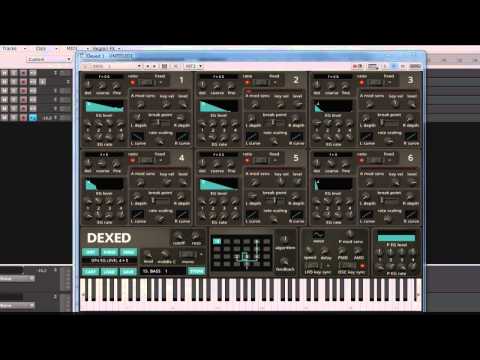
It sounds, to me, that you don’t actually want a conventional synth plugin. All of these (Surge XT, amsynth, Vitalium, Zynaddsubfx, etc.) are going to be confusing to you. It sounds to me like you want a simple instrument plugin with almost no interface and a bunch of presets.
For this, I would suggest GMSynth or a soundfont player where you can load sample packs like Fluida or Sfizz.
Cheers,
Keith
1 Like
Yea, SoundFont player of some kind is the right move in this case. Traditional synths are generaly complicated and mostly artificial-sounding.
Basicaly, plugin “Sfizz” (sfz, soundfont player) is sample-based synth, which means , you load portions of sound of live recorded real instruments (aka samples) already organized as library, which you load in a few simple clicks.
So, if you initialy don’t like the sound of loaded instrument when you first press the keys, you just search for the next instrument.
There’s a lot of free sfz,sf&sf2 instruments available online. Here’s one of the lists:
My casio ct s500 has 800 tones on it. I’m still going through them. I was wondering how disappointing it would be that my keyboard didn’t do usb with audio from the keyboard to the PC. But I didn’t need to worry as the line in seems to work okay. I’ll have to keep an eye out for GMsynth.