I recent bought a Shure SM57 mic because I want to record my guitar/amp setup. I have an old Fender Blues Deville amp, that I have now miced up with the SM57 going into my Focusrite 4th gen audio interface. I am running Ardour 9.5 under Arch Linux and I monitoring everything through my Sennheiser DT 770 Pro headset. Everything is sounding fine when monitoring but when I record something and listen to the playback it is very quiet compared to the monitored signal. What am I missing? FYI the same thing also happens in Audacity, so this is probably not an Ardour issue but I am lost on what to do here. Do need to turn up the the input on the DAW. Any suggestions are welcome, Thanks
Start pavucontrol, go to the “Input Devices” tab and make sure the input volume for your Focusrite is set to 100%
Just checked and it is at 100 %.
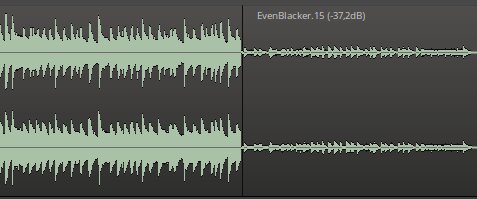
What does the waveforms look like in Ardour and Audacity; do they have reasonably large amplitude or are they just tiny squiggles?
If they look OK you probably have to turn up the output volume in pavucontrol.
If the amplitude is small it could be that you have the channel input knob on your Focusrite in Line mode as opposed to Mic mode.
The signal from your microphone is way lower than the one from, say, a synth.
What do you mean with tiny squiggles?
Does it look more like the left part here ( where it fills up most of the vertical space of the track and would indicate that it’s recorded OK but your output volume is set too low) or the right part (which would indicate that the input signal from your Focusrite for some reason is too low) ?
1 Like
You need to provide a lot more detail about how you have your audio connected and what is the exact monitoring path.
Are you using hardware monitoring through your interface, or software controlled monitoring through ardour?
1 Like
It looks more like the left picture.
I have my Focusrite 4th gen connected to my PC via USB. The Sennheiser DT 770 Pro headphones is plugged into the headphone jack of the Focusrite. I am using JACK when running Ardour/Audacity.
In that case we know that the sound Ardour records is at a proper level.
So the problem is the level going back out to your Focusrite and that’s either due to having a low master level in Ardour or that the master output level of your PC is set too low.
Just a quick reminder that you have Beyerdynamic headphones. 
… Unless some headphone cross-breeding happened when you weren’t looking… 
-J
You are rigth it is a Beyerdynamic. I was thinking of my old headset when typing.
1 Like
I’ll look into that. Where do I check the master level in Ardour?
1 Like
Is the focusrite interface big enough to have an internal mixer? If so, maybe the volumes there are set too low.
1 Like
Umm… here
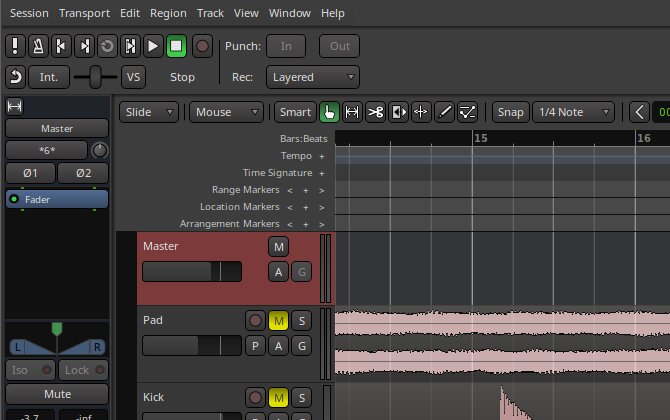
It’s also the rightmost channel strip in the Mixer window.
But since Audacity is too low as well you should probably check the overall output volume of your PC.
1 Like
Since you mention 4th gen, I assume you mean a Focusrite Scarlett family interface, and not Clarett+.
You do not indicate which Focusrite 4th gen interface, there are 4, and the Scarlett Solo has different capabilities than the 4i4 or the 16i16. I am not sure where the 2i2 falls in features, but as far as I know Scarlett Solo does not have a way to control the mix between direct input and playback mix for monitoring from the interface itself.
If using the Solo you will need to set the input gain to a level which gives appropriate recorded signal level of your input, set the headphone volume to your desired loudness, then control the playback signal volume using the Ardour output level controls (either master bus or monitor section, depending on how you configured your Ardour session).
If using one of the other Scarlett interfaces I believe there is a mixer application which allows control of the signal routing, that may allow you to control the mix from the interface and not have to rely on Ardour output levels to balance your monitor mix.
The mixer software provided by Focusrite only runs on MacOS and Windows, but there is an independently developed application you can download from GitHub which runs in Linux.
Depending on whether you are using jackd or pipewire there may also be an overall output level control still active that you can control with pavucontrol. If using jackd there is not, but if using pipewire-jack the system main volume control is still active.
Sorry for being unclear on the interface I am using. It is a Focusrite Scarlett 2i2 4th Gen and I have the alsa-scarlett-gui installed.
Since you seem a bit reticent to actually describe your setup and settings fully I will assume that you are using direct monitoring and used the Scarlett GUI to adjust the balance of input signal and playback signals mixed to the output.
That means that you have two different paths for your guitar signal. The path for recording is input->2i2 mixer->headphone amp. There will also be a second path from computer playback to headphone amp.
It is not clear to me from reading the ALSA Scarlett GUI user guide whether the gain settings for computer playback to outputs 1 and 2 (called mix A and B in the GUI) have separate settings for direct monitor mode, or whether that gain is always the same. You may have to investigate to find out yourself.
The path for playback is computer->2i2 mixer->headphone amp. Computer playback should be the sources labeled PCM 1 and 2 in the Scarlett GUI.
Probably the gain you have set for the direct input and the computer playback is not the same, and there are gain controls in the Ardour playback path as well.
On the edit view of Ardour left click on the recorded guitar track to select the region, then right click, hover over the region name at the top of the menu, then at the bottom of the region menu select loudness analysis.
What is the peak value shown, the integrated loudness, and loudness range? That will give an idea of how loud it should sound on a calibrated playback system.
Here is how I would approach setting up your system so it is least jarring going back and forth:
Get a finished mix of something that is pretty dynamic and high quality, not a super compressed rock mix for example. Import that into an Ardour track, set the track fader to 0dB and the master fader to 0dB.
In the Scarlett GUI turn off direct monitoring, make sure PCM1 is max on mix A, 0 (- infinity) on mix B,and PCM2 is max on Mix B, min on mix A.
That sets your basic stereo playback from the computer to be direct to the outputs.
Play back your track from Ardour and set the headphone level to be reasonably loud but comfortable. Think movie theater level.
That is your reference starting point that you want to be able to get back to quickly, so make a little pencil mark or something for that headphone level setting.
With that same setting go back to the Scarlett GUI, turn on direct monitoring, and adjust the input gain so that the recorded signal peaks at around -10 dB FS on the input meters.
Then adjust the DSP signals (DSP1 and DSP2 correspond to inputs 1 and 2 respectively) to the mix A and B as desired.
If you made it that far you should have settings that work for both playback/mixing, and recording. If you need more or less of the already recorded track(s) when recording you can adjust that with the ardour faders as needed.
This topic was automatically closed 91 days after the last reply. New replies are no longer allowed.