Hello fellow Ardour people 
Since April I’ve been working on a bit of a pet project: a standalone Lua script for Ardour (8.12+) that would allow me to copy and paste audio regions between project sessions/snapshots. I greatly desired this functionality because I wanted to merge song fragments (projects) into larger, more-complete song-projects (-and can now do so thanks to getting a much more powerful computer).
As with most of my projects, it started pretty minimally (-and naively  ), but quickly ballooned into a fully-fledged monster as I learned more and more about what I really wanted, and about how Lua works and what Lua is truly capable of doing within Ardour which, as it turns out, is a lot. So I also want to express my thanks to the developers of Ardour for making Ardour so incredibly flexible and truly free. Thank you.
Anyway, after much testing/tweaking, I think it’s decent enough to share:
…
Now, although the official GitHub repository there  contains everything you’d need to know about “AudioClipboard” in its README section, I thought I’d share a little bit about it here regardless…
AudioClipboard 
Basic Description
AudioClipboard (AudioClipboard.lua) is a Lua script designed to be run in the Ardour DAW (v8.12+) that allows one to copy and paste mono and stereo audio regions between projects/sessions/snapshots, whilst maintaining virtually all of the region data in the process.
Features:
- Works with audio regions, mono and stereo.
- Easy to use, 3-step process: Copy → Pre-Paste → Paste

- Pasted regions retain all original position, trim, envelope, gain, polarity, fade length/shape data, etc…
- Avoids most re-embedding or re-importing of files already present in the project during pre-pasting.
- By default, original relationships to source materials are preserved almost 1:1, but there’s also…
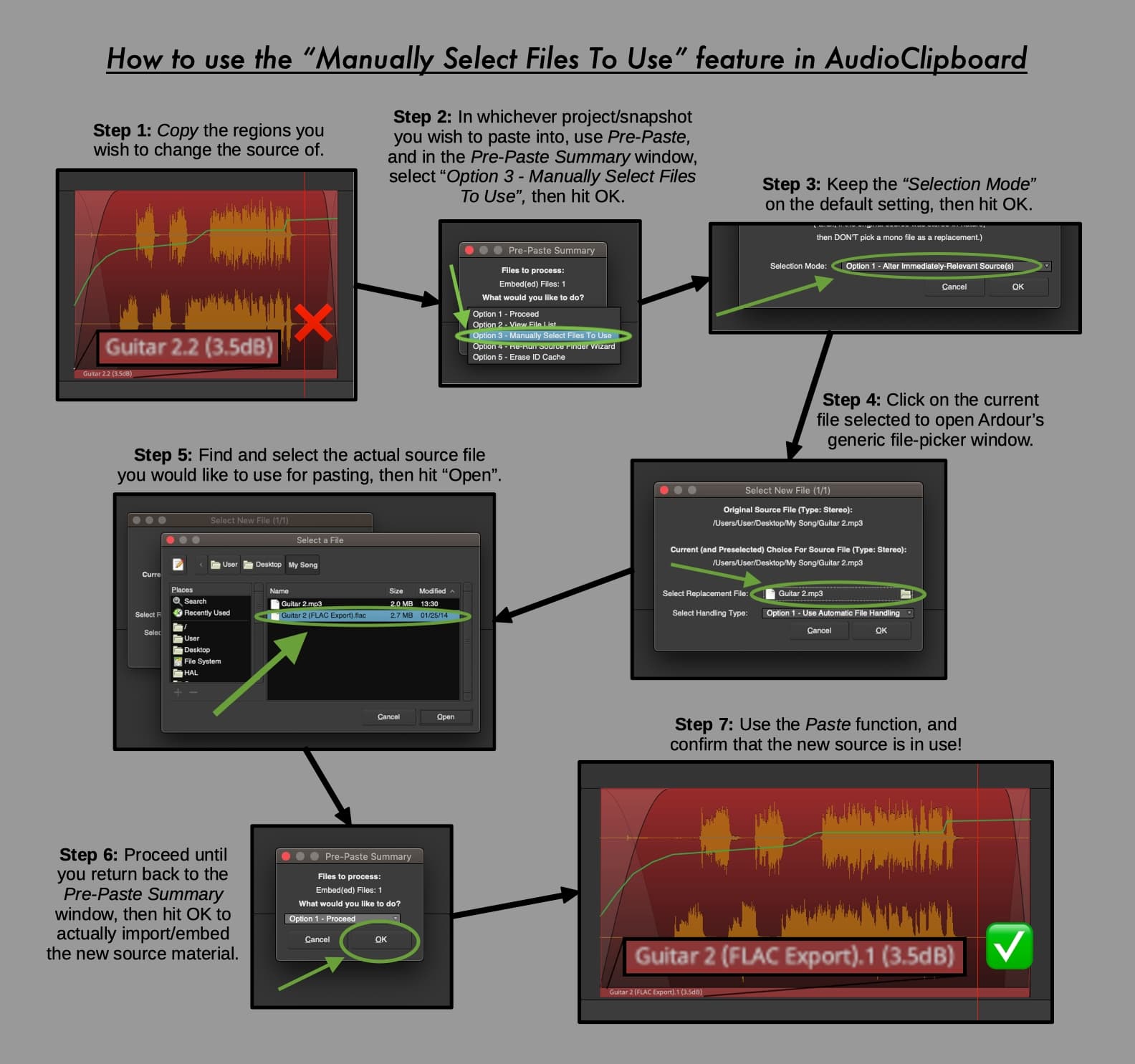
- An option to manually select different files to use for pasting. (This is super convenient for cleaning-up projects in general, and even fixing broken sources.
- Handles -L/-R regions that came from a use of “Make Mono Regions”.
- Handles combined audio regions (-although Ardour currently suffers from many combined region bugs, which can occasionally cause various problems in attempts to copy them, despite my best efforts).
- Can be used in conjunction with Ardour’s built-in track-template-creator to achieve full track and regions duplication from one session/snapshot into another.
- There’s a built-in ‘Source Finder Wizard’ that automatically discovers potential source matches (via similar naming) during Pre-Paste, and offers them for approval. (This feature further helps reduce redundant or unecessary imports/embeds.)
- All contained in a single, standalone Lua script.
- The Paste action is an undoable command (via ctrl-Z/cmd-Z, etc.).
- File-collisions and accidental erasures are prevented behind the scenes via simple file-name checks.
- Legacy Dual-Mono stereo pairs (with -L/-R endings) are automatically modernized during Pre-Paste by renaming them with standard (%L/%R) endings.
- Legacy fade shapes inherited from older versions of Ardour (like v2, etc.) are automatically detected and replaced during pasting with their closest modern equivalents. (-And the user is informed about this.)
- Automatically saves your session before any step is executed so that if something goes wrong and Ardour crashes (which is very unlikely), then no previous work is lost.
- Handles all project/region sample-rates (e.g. 44.1 kHz, 48 kHz, 96 kHz, etc.).
- Under the GNU General Public License (GPL), thus 100% free to use, copy, alter, distribute, etc.!
Known Limitations/Warnings
- It doesn’t (yet) work with audio regions/sources with more than 2 channels, sorry.
- It doesn’t work with anything MIDI, but this is okay because transferring MIDI regions is easy thanks to Ardour’s built-in region export function (-select the MIDI region, then click Region → Export…).
- It sometimes fails to properly handle combined/compound regions, mostly due to known Ardour bugs.
- It can’t recreate original transient markers. (-Hopefully this can be implemented soon.)
-
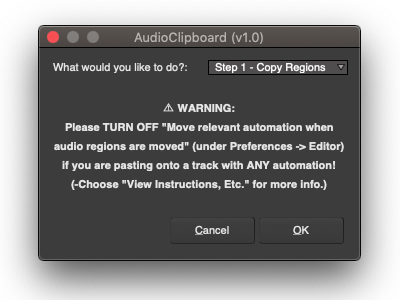
 Due to the way in which AudioClipboard pastes regions, this script has the potential to disturb/destroy automation curves (-plugin/fader/pan/etc.) on a track if the setting “Move relevant automation when audio regions are moved” (-under Preferences → Editor) is NOT disabled during Pasting. This is especially true for pasting combined regions.→ So PLEASE be sure to DISABLE that setting BEFORE using AudioClipboard!
…
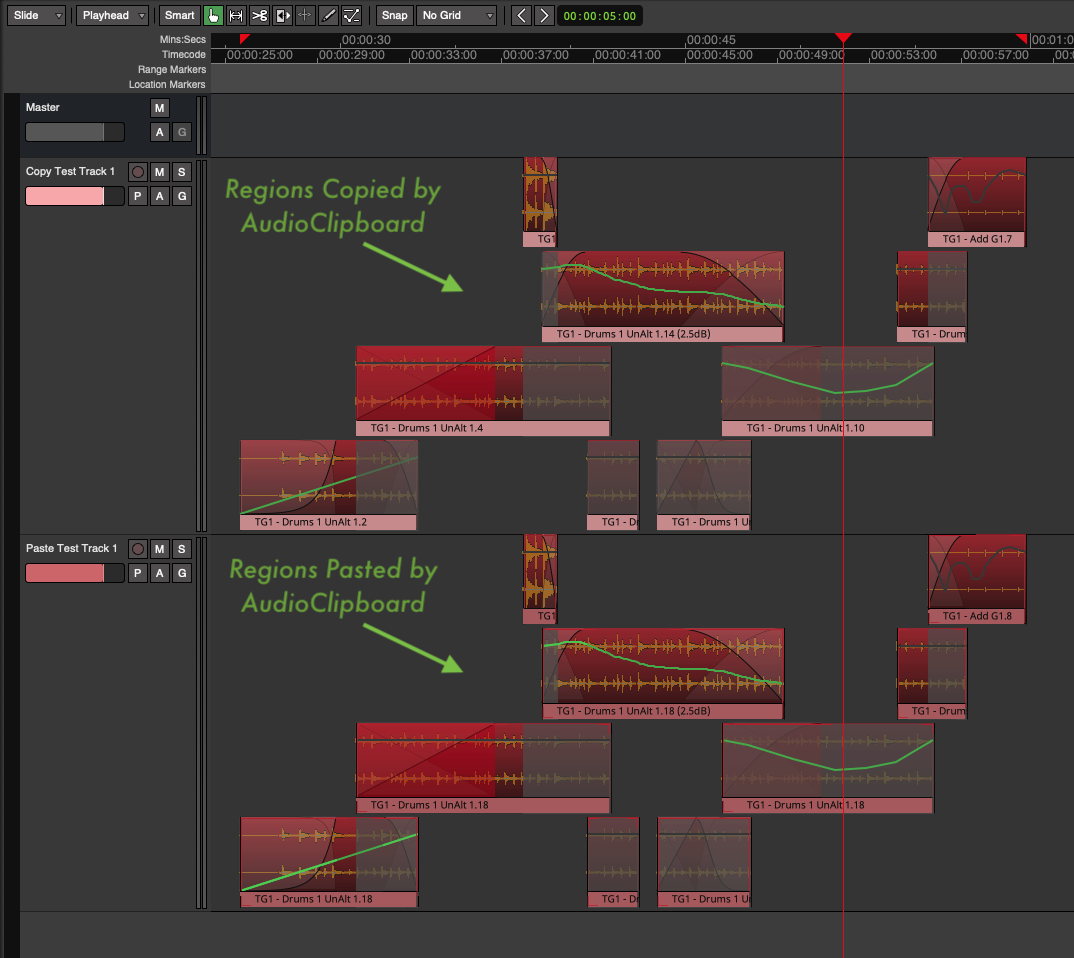
Here’s an example of the level of sample-accurate, copy-paste accuracy I made it achieve, covering and recreating a wide range of data points per region:
…
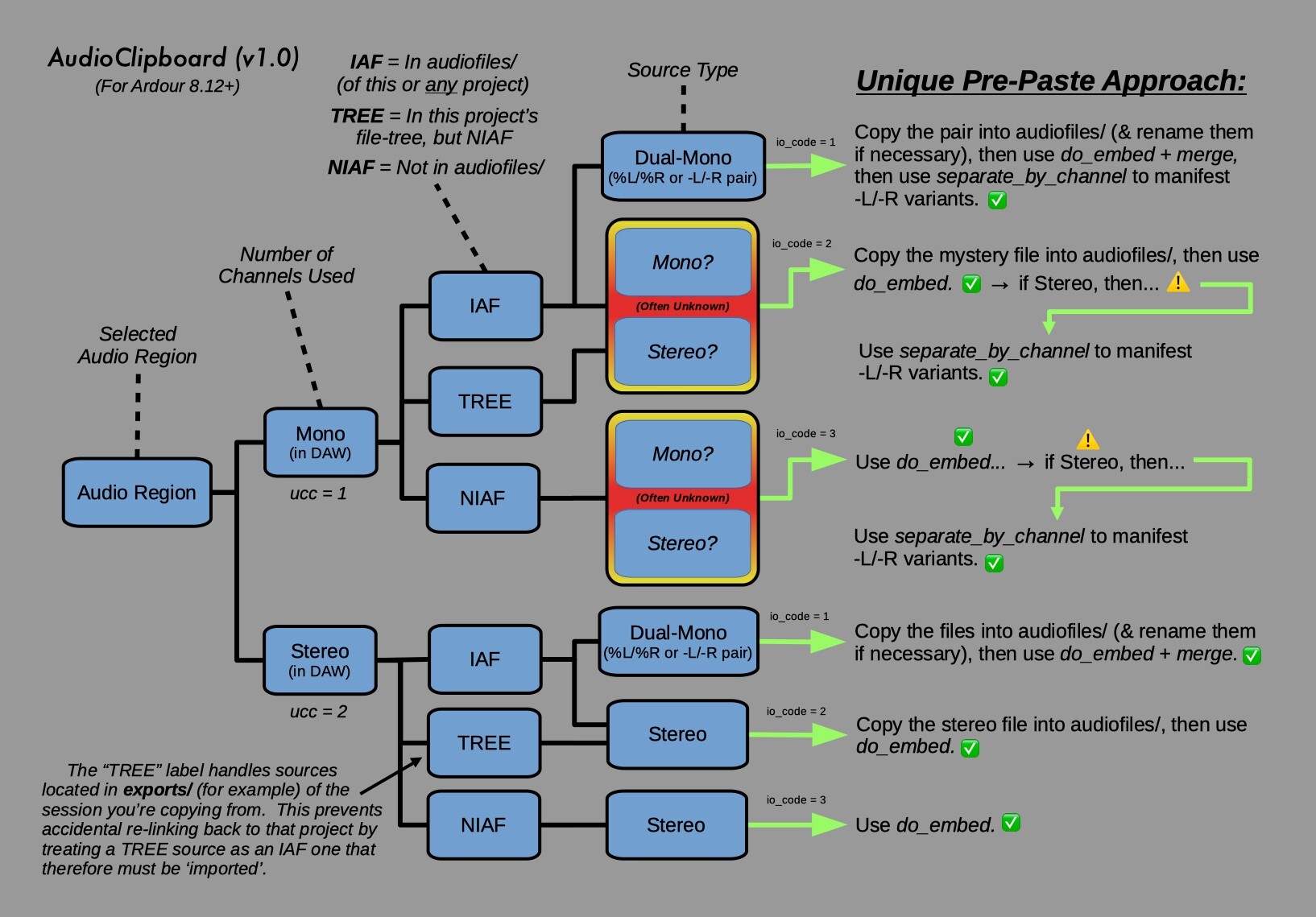
And finally, here is a more-technical diagram that I think is worth sharing here, too, that depicts the ‘heart’ of AudioClipboard, → i.e. the “Pre-Paste” process:
…
Figuring-out how to respectfully handle audio sources based on their unique type and location was a fun challenge, and was eventually narrowed-down to three overall handling routes based on whether the original source was coming from (1) an audiofiles/ directory and was a ‘Dual-Mono’ (%L/%R) pair, (2) was a whole stereo or mono file coming from an audiofiles/ directory, or (3) was coming from a not-in-audiofiles/ location (i.e. anywhere else on the machine pretty much). The basic premise here was to maintain original region-to-source relationships as close to 1:1 as possible, as mentioned earlier…
…
Oh yeah! -And it would be nice to get a few new bindings if possible(?) (and maybe some other stuff fixed) pretty please. 
…
For a long time a few people here and there have expressed a desire for this kind of functionality (…myself included). So hopefully this script can help fill that void somewhat, and help at least a few people out there beyond myself!
~Thanks for reading, and enjoy!
J. K. Lookinland

[ PS: If you encounter any major/minor bugs, please let me know (via GitHub or on here) so I can address them sooner than later. -Thanks! ]
…
[ [ PS PS: Um, maybe it’s about time to get a ‘Lua Scripts/Scripting’ category on the forum here?  ] ]
] ]